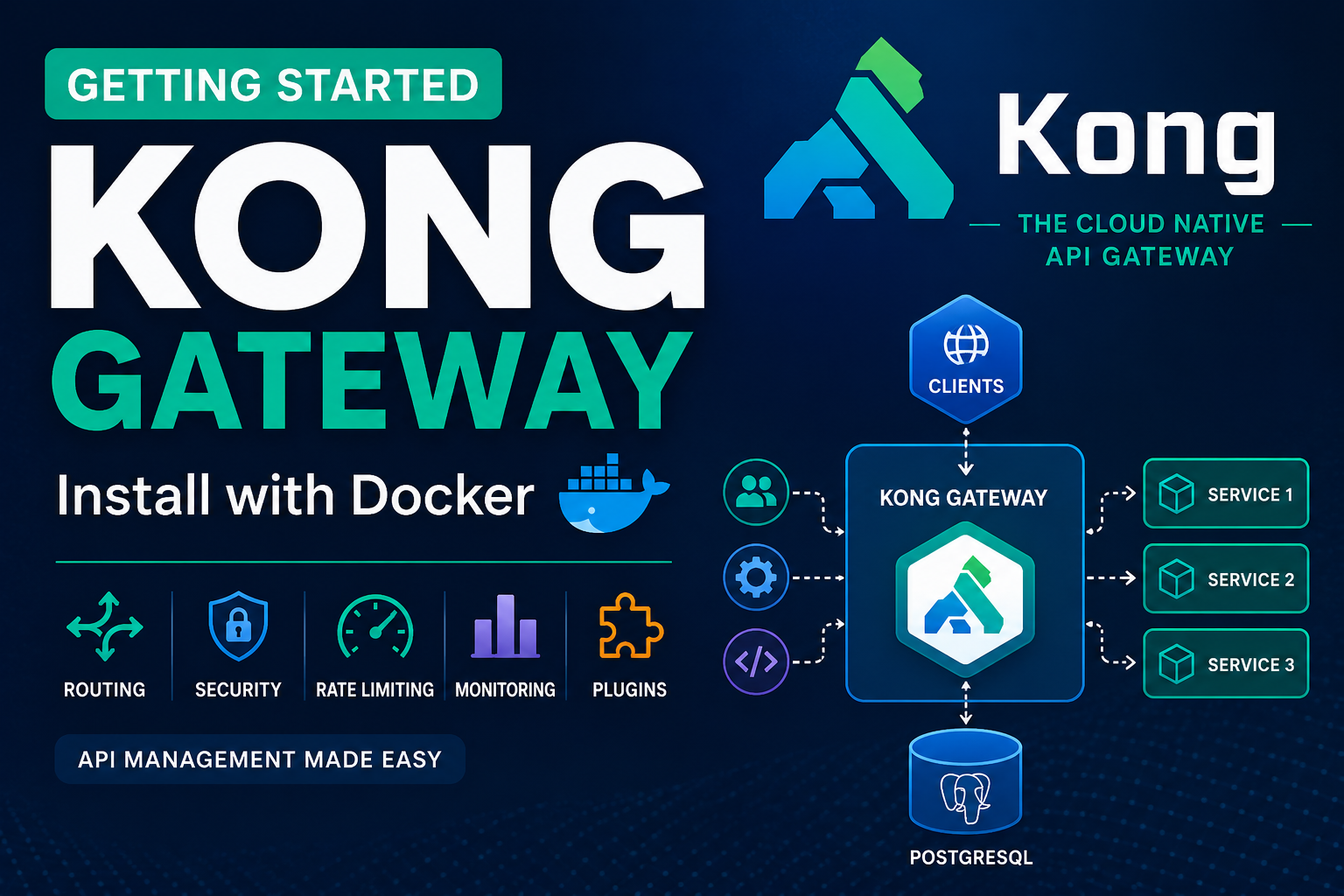
Overview
In modern microservices architecture, managing APIs efficiently is very important. This is where Kong Gateway comes into the picture.
Kong Gateway is a high-performance open-source API Gateway built on top of Nginx. It helps organizations manage, secure, monitor, and route APIs and microservices efficiently.
Using Kong Gateway, you can:
- Route API traffic to backend services
- Apply authentication and authorization
- Enable rate limiting
- Monitor API traffic
- Secure APIs with plugins
- Manage APIs centrally
Kong is widely used in enterprise integration and cloud-native environments because of its scalability and plugin-based architecture.
Some important components in Kong Gateway include:
| Component | Description |
|---|---|
| Proxy Layer | Routes incoming API requests |
| Admin API | Used to configure Kong |
| Kong Manager | Web UI for managing APIs |
| Plugins | Add authentication, logging, rate limiting, etc. |
| Database | Stores Kong configuration |
In this article, we will install Kong Gateway locally using Docker and understand the Docker Compose configuration step by step.
Installing Kong Gateway using Docker
Before starting, make sure the following are installed on your machine:
Create a file named:
docker-compose.yml
Add the following configuration:
version: "3.9"

volumes:
  kong_db_data:

networks:
  kong-ee-net:
    driver: bridge

x-kong-config: &kong-env
  KONG_DATABASE: postgres
  KONG_PG_HOST: kong-ee-database
  KONG_PG_DATABASE: kong
  KONG_PG_USER: kong
  KONG_PG_PASSWORD: kong

services:

  kong-ee-database:
    image: postgres:15
    container_name: kong-ee-database
    restart: unless-stopped
    networks:
      - kong-ee-net
    volumes:
      - kong_db_data:/var/lib/postgresql/data
    environment:
      POSTGRES_USER: kong
      POSTGRES_DB: kong
      POSTGRES_PASSWORD: kong
    healthcheck:
      test: ["CMD-SHELL", "pg_isready -U kong"]
      interval: 5s
      timeout: 5s
      retries: 5
    ports:
      - "5433:5432"

  kong-bootstrap:
    image: kong/kong-gateway:3.6
    container_name: kong-bootstrap
    restart: on-failure
    networks:
      - kong-ee-net
    depends_on:
      kong-ee-database:
        condition: service_healthy
    environment:
      <<: *kong-env
      KONG_PASSWORD: handyshake
    command: kong migrations bootstrap

  kong:
    image: kong/kong-gateway:3.6
    container_name: kong
    restart: unless-stopped
    networks:
      - kong-ee-net
    depends_on:
      kong-bootstrap:
        condition: service_completed_successfully
    environment:
      <<: *kong-env
      KONG_ADMIN_LISTEN: 0.0.0.0:8001
      KONG_ADMIN_GUI_LISTEN: 0.0.0.0:8002
      KONG_ADMIN_GUI_URL: http://localhost:8002
      KONG_PASSWORD: handyshake
    ports:
      - "8000:8000"
      - "8443:8443"
      - "8001:8001"
      - "8002:8002"
Understanding the Docker Compose File
Volumes :
volumes:
  kong_db_data:
This creates a persistent Docker volume for PostgreSQL data. Even if the container restarts, the database data remains same.
Networks :
networks:
  kong-ee-net:
    driver: bridge
This creates a custom Docker bridge network so that all Kong-related containers can communicate with each other internally.
Shared Kong Environment Variables :
x-kong-config: &kong-env
This section defines reusable environment variables for Kong services.
| Variable | Purpose |
|---|---|
| KONG_DATABASE | Database type |
| KONG_PG_HOST | PostgreSQL container hostname |
| KONG_PG_DATABASE | Database name |
| KONG_PG_USER | Database username |
| KONG_PG_PASSWORD | Database password |
PostgreSQL Database Container :
kong-ee-database:
This service creates the PostgreSQL database required by Kong Gateway.
Important configurations:
| Configuration | Purpose |
|---|---|
| image: postgres:15 | Uses PostgreSQL version 15 |
| volumes | Stores DB data persistently |
| healthcheck | Verifies DB readiness |
| ports | Exposes PostgreSQL on port 5433 |
Kong Bootstrap Container :
kong-bootstrap:
This container is responsible for initializing the Kong database.
The command:
kong migrations bootstrap
creates all required Kong tables and schema inside PostgreSQL.
This container runs only once during the initial setup and exits successfully after completing migrations.
Main Kong Gateway Container :
kong:
This is the actual Kong Gateway service.
It exposes:
| Port | Purpose |
|---|---|
| 8000 | HTTP Proxy |
| 8443 | HTTPS Proxy |
| 8001 | Admin API |
| 8002 | Kong Manager GUI |
Running Kong Gateway
Start the containers using:
docker compose up -d
Verify the running containers:
docker ps
You should see:
- kong
- kong-ee-database
- kong-bootstrap
The kong-bootstrap container may show an exited status after successful execution, which is completely normal.
Accessing Kong Gateway
Once the containers are running, you can access:
| Service | URL |
|---|---|
| Kong Proxy | http://localhost:8000 |
| Kong Admin API | http://localhost:8001 |
| Kong Manager UI | http://localhost:8002 |
To verify Kong is working:
curl http://localhost:8001
If everything is configured correctly, Kong will return a JSON response with version and configuration details.